PCB design softwares: Difference between revisions
From wikiluntti
| Line 24: | Line 24: | ||
Kicad arduinoUno Schematic2.png| The values can be edited by E key. | Kicad arduinoUno Schematic2.png| The values can be edited by E key. | ||
Kicad arduinoUno Schematic3.png| Copy the labels and the text and rectangle | Kicad arduinoUno Schematic3.png| Copy the labels and the text and rectangle | ||
Kicad arduinoUno Schematic4.png| Cut the wires from the unused connectors. | |||
</gallery> | </gallery> | ||
Revision as of 19:53, 13 February 2026
Introduction
- LibrePCB
- kiCAD
Kicad Tutorial
1
Workflow (a project-based workflow)
- drawing a schematic: Schematic Editor. Which components are in the design and how they are connected.
- custom symbols may need to be created if appropriate symbols aren't available.
- footprints are also selected for each component
- laying out a circuit board: PCB Editor
- footprints are the copper pads that match the pins on a physical component
- editing symbols: Symbol Editor
- editing footprints: Footprint Editor
Arduino Uno custom shield
-
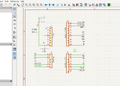
The connectors are already available at the Templates.
-
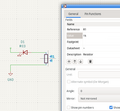
The values can be edited by E key.
-
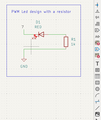
Copy the labels and the text and rectangle
-
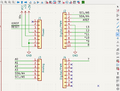
Cut the wires from the unused connectors.


File → New Project From Template → Arduino Uno


